[Ubuntu] [Docker] Need help with Nvidia hardware acceleration in Jellyfin
from LazerDickMcCheese@sh.itjust.works to selfhosted@lemmy.world on 15 Feb 2026 23:58
https://sh.itjust.works/post/55397111
from LazerDickMcCheese@sh.itjust.works to selfhosted@lemmy.world on 15 Feb 2026 23:58
https://sh.itjust.works/post/55397111
Does anyone have a compose.yaml for an Nvidia GPU that works that they would like to share? Here’s my current file, it gives a white screen with “server error” on it: pastebin.com/AaV17cTz
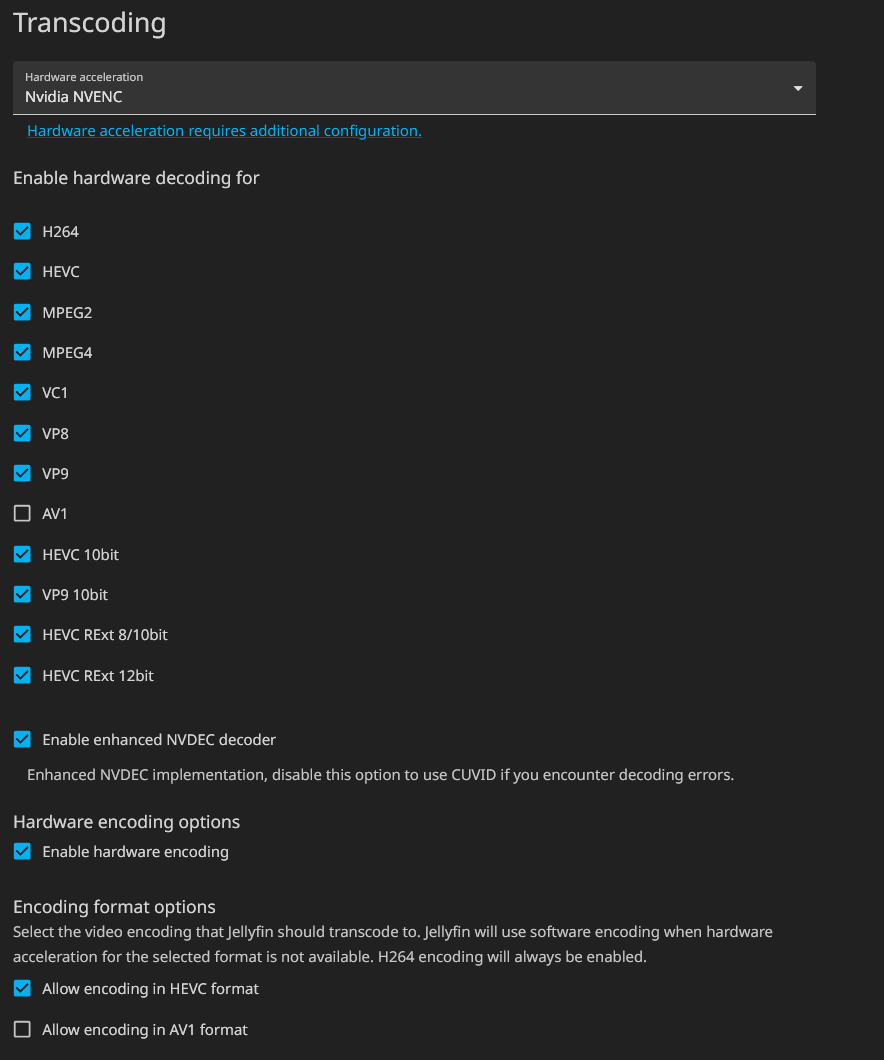
I went through Jellyfin’s instructions on setting a GPU up, but the instructions weren’t clear (in my opinion) so who knows if it’s correct. I installed some Nvidia tools as a prerequisite and ‘nvidia-smi’ shows the card. I attached my Jellyfin settings from before it self-destructed according to Nvidia’s transcoding matrix (which also wasn’t descriptive enough in my opinion), do they look right for a 2080?
Update: after making this post, and changing nothing, it suddenly works
#selfhosted
threaded - newest
The biggest concern here would be 1) have you installed the Nvidia container toolkit, and 2) how are you passing the GPU into the Jellyfin docker container.
I’ve got an Ansible-playbook that takes care of the Nvidia stuff. I’ve also got a compose file I can share. Will edit this post when I can provide a link.
In your compose file, make sure you’ve added
runtime: nvidia.You also don’t need to deploy the resources and reserve the GPU, you can remove the entire
deploysection when using the nvidia runtime.I have an intel igpu. It was hella painful to pass through the guy into a normal container and I never figured it out. I just ended up running the container with the —privileged flag. QuickSync hwaccel works fine now, I assume it would be the same for NVENC, since the flag basically just passes everything to the container.
I use Intel too and had a heck of a time getting things working with portainer. Turns out portainer only worked with Nvidia (at least the version I used when I set it up). If I spun up the container via terminal, it worked.
I think a newer version may have added compatibility because I don’t remember jumping through hoops with Immich.
Man, I have an intel iGPU myself, in a little Dell optiplex 7090 and it was a breeze on my Debian sever. Installed through apt and it’s running as a systemd service. No issues so far. Only one issue I had was when I played a 70GB 4k HDR movie that’s loaded with audio and subs and picture enhancements on my OLED TV. The server’s little fan was screaming and the movie kept pausing every 20 seconds. Other than that I have a ton of other movies and shows and I have no issues.
Huh? I have an ARC A380 and I just followed the tutorial. AFAICT everything’s working fine.
jellyfin.org/docs/general/post-install/…/intel#co…
Jellyfin isn’t the most secure piece of software out there, I would avoid giving it permissions it doesn’t need.
Step 1) Check /dev/dri for the GPU
Documentation indicates renderDXXX typically refers to Intel GPU’s
sudo docker compose up -d; sudo docker exec -it jellyfin bashOnce inside
ls/dev/dri to confirm the GPU is recognized inside the container, once you confirm it then you can exit the container.<img alt="" src="https://sh.itjust.works/pictrs/image/9d0f6573-4286-457f-8fc6-3215e922914e.jpeg">
Here’s mine, no judging for how I set the ip
name: jellyfin
services:
    jellyfin:
        container_name: jellyfin.live
        networks:
            mynet:
                ipv4_address: 192.168.5.3
        ports:
            - 8096:8096
        volumes:
            - jellyfin-config:/config
            - jellyfin-cache:/cache
            - type: bind
              source: /mnt
              target: /Media Disk 1
            - type: bind
              source: /mnt
              target: /Media Disk 2
            - type: bind
              source: /mnt
              target: /Media Disk 3
        environment:
            - HEALTHCHECK_URL=192.168.5.3
        restart: unless-stopped
        deploy:
            resources:
                reservations:
                    devices:
                        - driver: nvidia
                          count: all
                          capabilities:
                              - gpu
        image: jellyfin/jellyfin:latest
networks:
    mynet:
        external: true
        name: mynet
volumes:
    jellyfin-config:
        external: true
        name: jellyfin-config
    jellyfin-cache:
        external: true
        name: jellyfin-cache
The section on the GPU looks like yours. I had to do something to get it working, but it’s been forever.
This works for me, rtx 4060
jellyfin: image: jellyfin/jellyfin:latest container_name: jellyfin user: 108:114 network_mode: 'host' environment: - JELLYFIN_CACHE_DIR=/var/cache/jellyfin - JELLYFIN_CONFIG_DIR=/etc/jellyfin - JELLYFIN_DATA_DIR=/var/lib/jellyfin - JELLYFIN_LOG_DIR=/var/log/jellyfin - JELLYFIN_PublishedServerUrl=URL_REDACTED - NVIDIA_DRIVER_CAPABILITIES=all - NVIDIA_VISIBLE_DEVICES=all volumes: - /etc/jellyfin:/etc/jellyfin - /mnt/driveF/jellyfin/cache:/var/cache/jellyfin - /mnt/driveF/jellyfin/data:/var/lib/jellyfin - /mnt/driveF/jellyfin/log:/var/log/jellyfin - /mnt/Movies:/movies - /mnt/TV:/tv - /mnt/Music:/music runtime: nvidia deploy: resources: reservations: devices: - driver: nvidia count: all capabilities: [gpu] restart: 'unless-stopped' extra_hosts: - "host.docker.internal:host-gateway"Here are some relevant stuff, also have nvidia drivers and vids libs installed.
Running in a podman quadlet on fedora
After=nvidia-cdi-generator
[Container]
Image=docker.io/jellyfin/jellyfin
PodmanArgs=–privileged --gpus=all
Environment=NVIDIA_VISIBLE_DEVICES=all
AddDevice=/dev/dri/card0:/dev/dri/card0
I had the same problem: Debian host + official Jellyfin Docker image, all set up according to the official guide, but it would fail to transcode anything.
There was no relevant information about what was wrong in the logs so what I did was:
docker exec -itinto the Jellyfin container.Long story short, because the Nvidia toolkit uses the driver/libraries from the host, the error was that I was missing the library
libnvidia-encode1on the host. After installing that, everything works as it should.